How to Compress Videos for Smaller File Size Without Quality Loss
Whether you're trying to upload a video to Instagram, send a clip via email, or free up storage space, one challenge always gets in the way: video files are huge. A single 4K clip can easily exceed 4GB, making sharing or storing videos a serious headache.
The good news? You can compress videos dramatically — often by 70–90% — without any visible loss in quality, if you know the right tools and settings.
This complete guide walks you through everything you need to know: how video compression works, the best settings to use, step-by-step instructions for Windows and Mac, platform-specific tips, and a full comparison of the best tools available.
1. Introduction
What Does Video Compression Mean?
Video compression is the process of reducing the size of a video file by encoding its data more efficiently. Rather than storing every single pixel of every single frame, compression algorithms identify and eliminate redundant information — things your eye wouldn't notice anyway — to produce a smaller file that looks virtually identical to the original.
Think of it like packing a suitcase: you can fit far more clothes by folding them neatly than by throwing them in randomly. Compression is the "folding" — it reorganizes video data so it takes up far less space.
Every video you've ever watched online — YouTube, Netflix, TikTok — is compressed. The goal isn't to make video look bad. It's to make it small enough to stream and share efficiently, while keeping it looking great.
Why You Need to Compress Video Files
Here's the reality: raw or uncompressed video is almost never practical. A 10-minute recording at 4K resolution can easily reach 20GB or more. That creates real-world problems:
Email attachments are typically capped at 10–25MB
Social platforms have their own upload size limits and re-compress your video anyway
Cloud storage fills up fast with large raw files
Slow upload speeds make sharing large videos painful
Limited storage on phones, laptops, and external drives gets consumed quickly
Compressing your video solves all of these problems at once — and with the right tool, you won't sacrifice a single pixel of visible quality.
Common Use Cases
| Use Case | Typical Need |
|---|---|
| Email Attachments | Under 25MB (often under 10MB) |
| Website Embedding | Under 10MB for fast page load |
| Social Media Upload | Platform-specific size & duration limits |
| Cloud Storage / Archiving | Reduce long-term storage costs |
| Sharing via Messaging Apps | Under 100MB for WhatsApp/Telegram |
| Video Editing Projects | Proxy files for faster editing workflows |
2. How Video Compression Works
Key Concepts: Bitrate, Resolution, Codec, and Format
Understanding these four terms will help you make smart compression decisions:
Bitrate refers to the amount of data processed per second of video, measured in Mbps (megabits per second) or Kbps (kilobits per second). The higher the bitrate, the better the quality — and the larger the file. This is the single most important setting to control when compressing video.
Resolution is the number of pixels in each frame: 4K (3840×2160), 1080p (1920×1080), 720p (1280×720), and so on. Lowering resolution reduces file size significantly, but also reduces sharpness. For most web content, 1080p is the sweet spot.
Codec (short for coder-decoder) is the algorithm used to encode and decode video data. Different codecs achieve different levels of compression efficiency. H.264, H.265/HEVC, and AV1 are the most commonly used today.
Format (Container) is the file type — MP4, MOV, AVI, MKV, WebM. The container "wraps" the codec, audio, and metadata. MP4 is the universal standard for sharing because it's compatible with virtually every device and platform.
Lossy vs. Lossless Compression Explained
Lossy compression permanently removes some data to achieve smaller file sizes. The removed data is usually imperceptible to the human eye — things like subtle color gradients, fine textures, or redundant frames. Most video compression (YouTube, Instagram, Linraw doVideo's default output) is lossy. You can achieve 70–90% size reduction with virtually no visible quality loss at the right settings.
Lossless compression reduces file size without discarding any data at all. The decompressed file is bit-for-bit identical to the original. Lossless codecs (like FFV1 or Apple ProRes) produce much larger files than lossy codecs, and are used primarily in professional video editing workflows, not for sharing or web delivery.
For most people, high-quality lossy compression is the goal — and it's what tools like Linraw doVideo are optimized for.
What Affects Video File Size
Video file size is determined by a simple formula:
File Size ≈ Bitrate × Duration
But several factors influence that bitrate:
Resolution: 4K video requires roughly 4× the data of 1080p
Frame rate: 60fps files are larger than 30fps files
Codec efficiency: H.265 delivers the same quality as H.264 at half the file size
Scene complexity: Fast-moving, high-detail scenes (sports, action) require higher bitrates than static scenes (talking head, screencast)
Audio track: Multi-channel lossless audio adds significant size; AAC stereo is compact and high-quality
Duration: Longer videos are simply bigger
3. Best Settings to Compress Videos Without Losing Quality
Recommended Video Codecs (H.264, H.265/HEVC, AV1)
Choosing the right codec is the most impactful decision in your compression workflow:
H.264 (AVC) — The current universal standard. Virtually every device, browser, and platform supports it. At a Constant Rate Factor (CRF) of 18–23, H.264 delivers excellent quality. It's the safest choice for broad compatibility.
H.265 / HEVC — The successor to H.264. Delivers the same perceived quality at roughly half the file size. The tradeoff: it requires more CPU to encode and decode, and compatibility is slightly lower on older devices (though modern browsers, phones, and streaming platforms all support it). Best for 4K content or when file size is critical.
AV1 — The newest open-source codec, developed by Google, Mozilla, and others. Even more efficient than H.265 — up to 30% better compression — but significantly slower to encode. Best for streaming services with heavy infrastructure. Not yet ideal for quick desktop compression.
Recommended codec for most users: H.264 or H.265, depending on your priority — compatibility vs. efficiency.
Optimal Resolution and Bitrate Settings
Use these recommended bitrate ranges as your reference:
| Resolution | H.264 Bitrate | H.265 Bitrate | Use Case |
|---|---|---|---|
| 4K (2160p) | 35–68 Mbps | 15–30 Mbps | Archiving, high-quality delivery |
| 1080p | 8–12 Mbps | 4–6 Mbps | Web, YouTube, social media |
| 720p | 3–5 Mbps | 1.5–2.5 Mbps | Email, messaging apps |
| 480p | 1–1.5 Mbps | 0.5–0.75 Mbps | Mobile preview, thumbnails |
For most web content, 1080p at 6–10 Mbps with H.264 is the sweet spot.
Frame Rate and Audio Settings
Frame Rate: Match your output frame rate to your source. If your original is 30fps, keep it at 30fps. Only downscale frame rate (e.g., 60fps → 30fps) if reducing file size is more important than smooth motion.
Audio Settings:
Codec: AAC is the universal standard — efficient, high-quality, widely supported
Bitrate: 128 Kbps for stereo is sufficient for most content; 192 Kbps for music or high-fidelity audio
Sample Rate: 44.1 kHz or 48 kHz — keep it at the source rate; don't downsample unnecessarily
Balancing File Size vs. Quality
The key principle: compress as little as you need to, not as much as you can.
Use a quality-based encoder setting (CRF in FFmpeg) rather than targeting a fixed bitrate
CRF 18 = near-lossless; CRF 23 = standard high quality; CRF 28 = lower quality, smaller file
Always preview your compressed output before finalizing — don't assume settings will look right on every type of content
For talking-head videos: you can compress aggressively (lower bitrate, even 720p)
For action/sports/games: preserve higher bitrate to prevent motion blur and blockiness
4. How to Compress Videos on Windows & Mac (Step-by-Step)
Method 1: Compress Videos Using Linraw doVideo (Recommended)
Linraw doVideo is a powerful desktop video compression tool for Windows and Mac that makes high-quality compression simple — no technical expertise required. It supports batch processing, dozens of formats, and smart quality presets that do the heavy lifting for you.
Step 1: Install and Launch Linraw doVideo
Download Linraw doVideo from the official website and run the installer
Follow the on-screen setup wizard (takes under 2 minutes)
Launch Linraw doVideo from your desktop or Start Menu / Applications folder
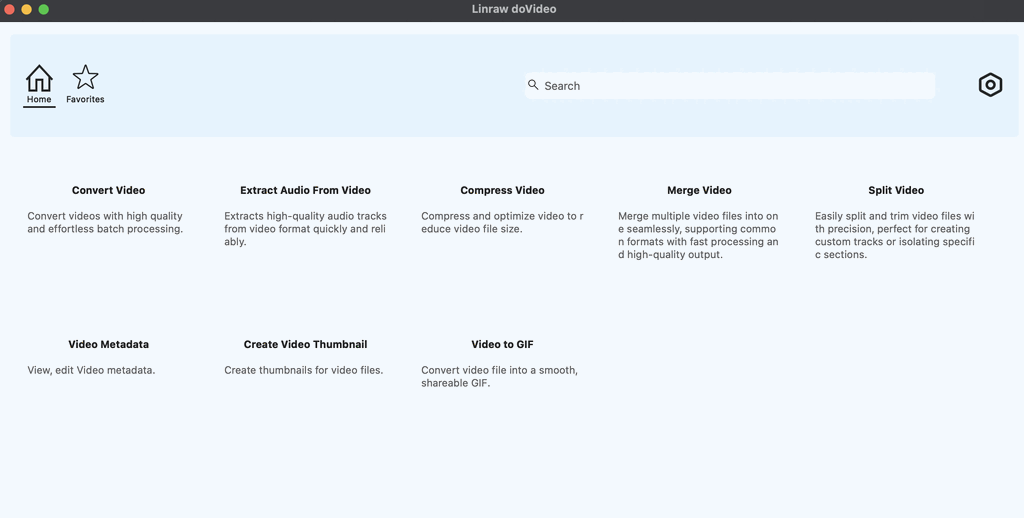
Click the tool Compress Video
The clean, intuitive interface will open with a drag-and-drop workspace
Step 2: Add Single or Multiple Video Files
You have two ways to import video files into Linraw doVideo:
Drag & Drop: Simply drag your video file(s) directly into the Linraw doVideo window
Add File Button: Click "Add File" in the toolbar and browse to your videos
Linraw doVideo supports all major video formats as input: MP4, MOV, AVI, MKV, WebM, and more.
Step 3: Choose Compression Settings
Once your files are loaded, simply select a quality level (High, Medium, or Low), and Linraw doVideo will automatically choose the most suitable settings, including resolution, bitrate, output format, and more — great for beginners.
Step 4: Batch Compress Videos Efficiently
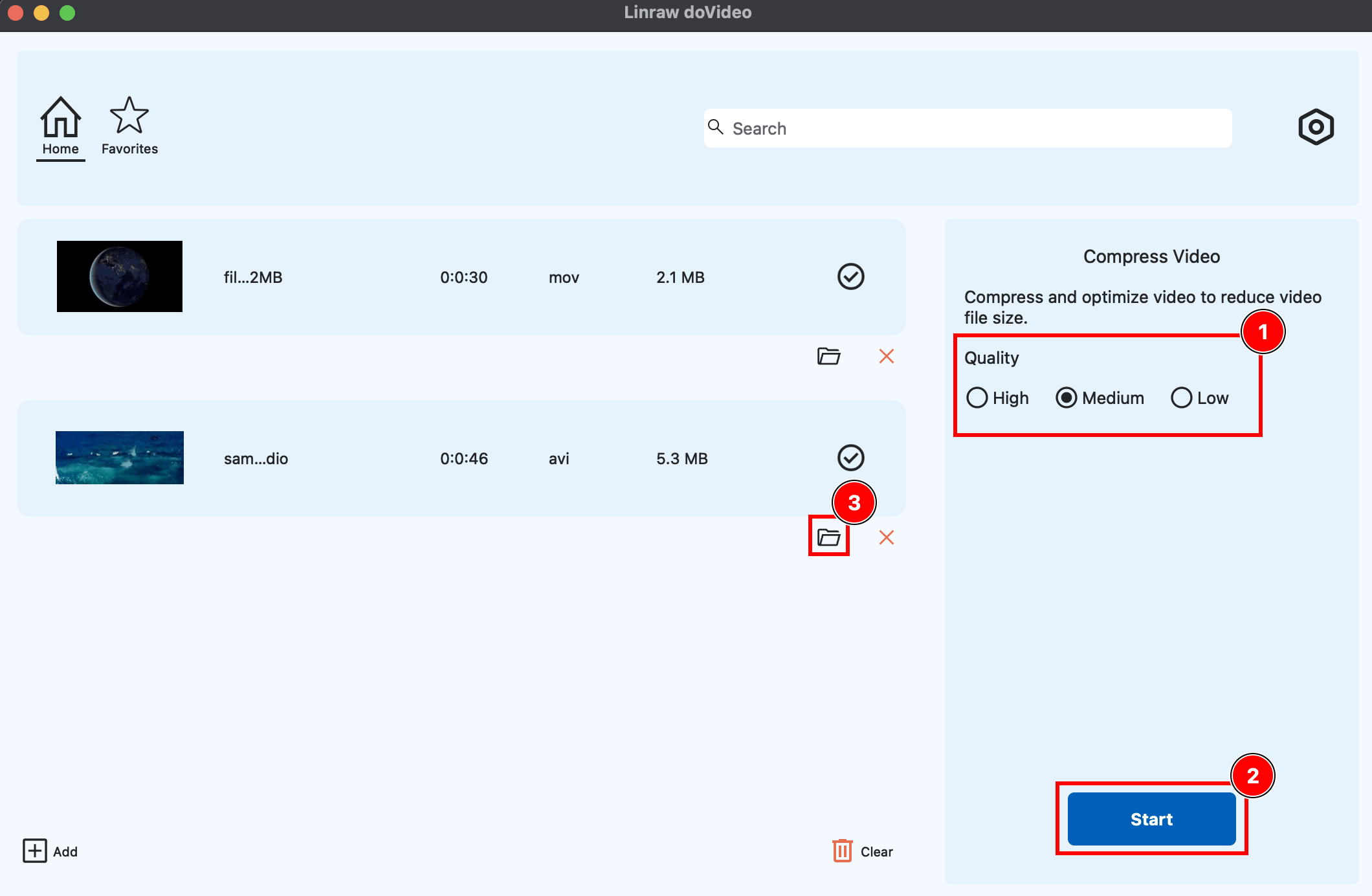
If you've added multiple files, Linraw doVideo processes them all in sequence automatically.
Click Start and Linraw doVideo handles the rest. A real-time progress bar keep you informed throughout.
Method 2: Compress Videos Using Built-in or Free Tools
On Windows — Clipchamp (built into Windows 11):
Open Clipchamp
Import your video
Click Export
Choose:
480p / 720p / 1080p
Lower resolution = smaller file
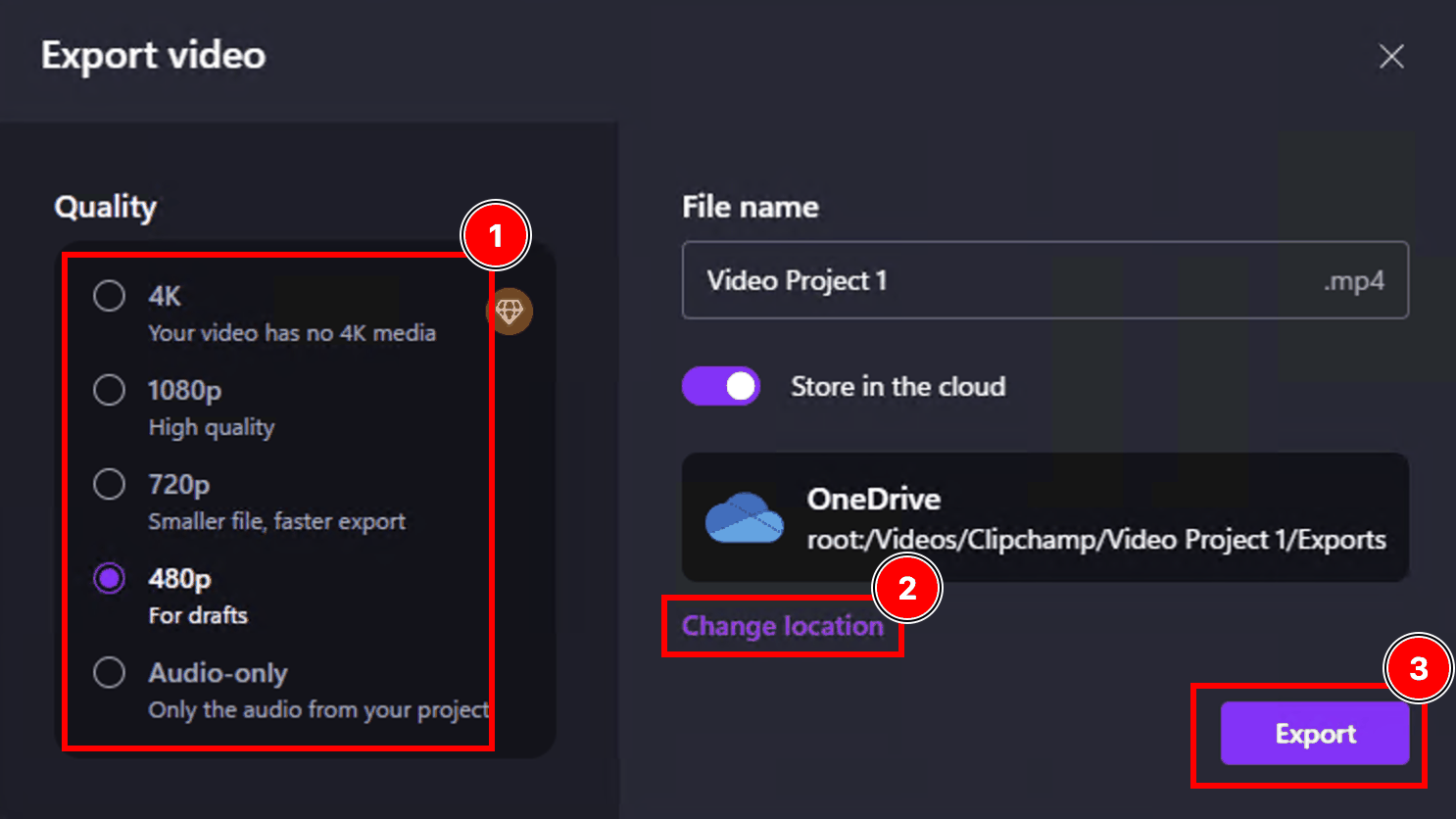
This is convenient for quick compressions but offers minimal control over codec, bitrate, or resolution.
On Mac — QuickTime Player:
Open your video in QuickTime Player
Go to File → Export As
Choose a resolution: 4K, 1080p, 720p, or 480p
QuickTime re-encodes the file with Apple's H.264 encoder at a fixed quality level
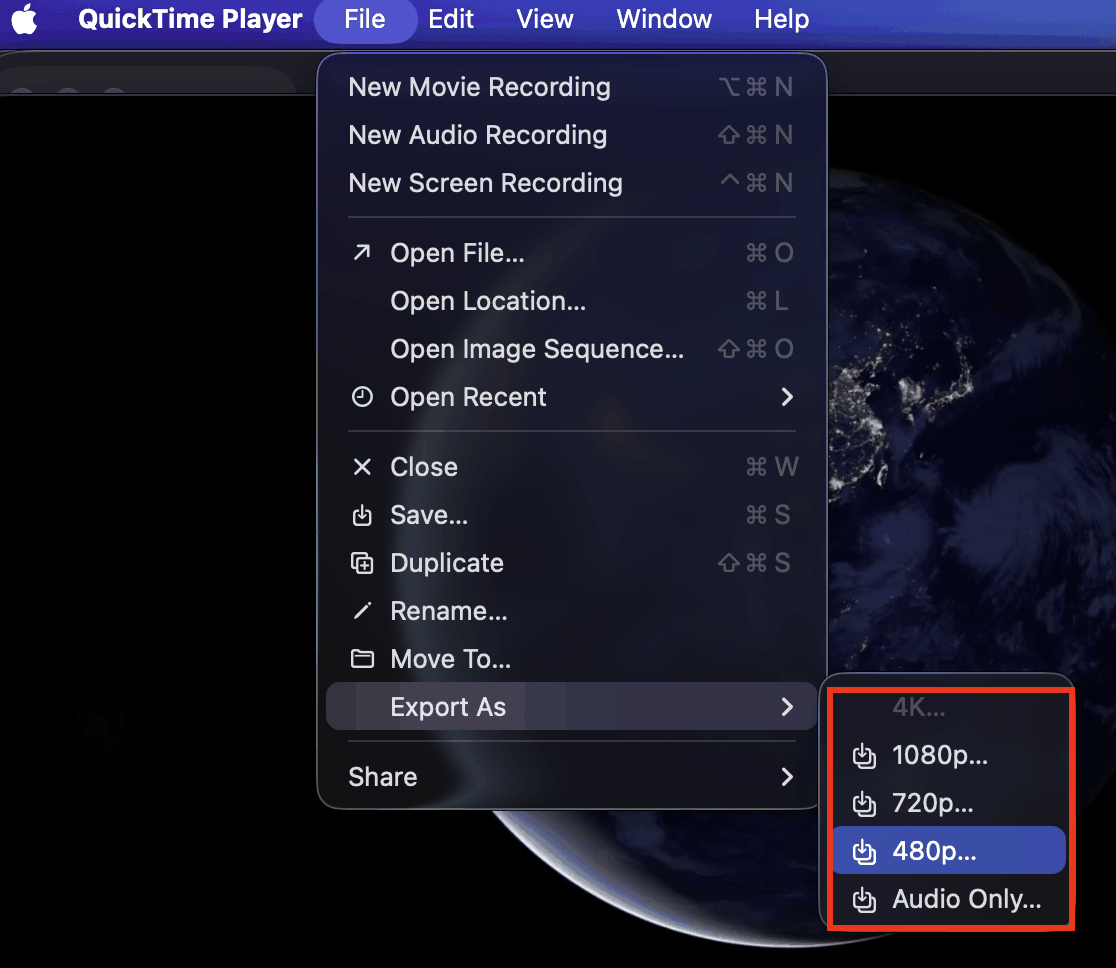
QuickTime is fast and easy, but you can't adjust bitrate or codec. The resulting files are still much smaller than uncompressed originals.
VLC Media Player (Free, Windows & Mac):
Open VLC → Media → Convert/Save
Add your video file and click Convert/Save
Choose a profile (e.g., Video for Web) and click Edit Profile to adjust bitrate
Set your destination file and click Start
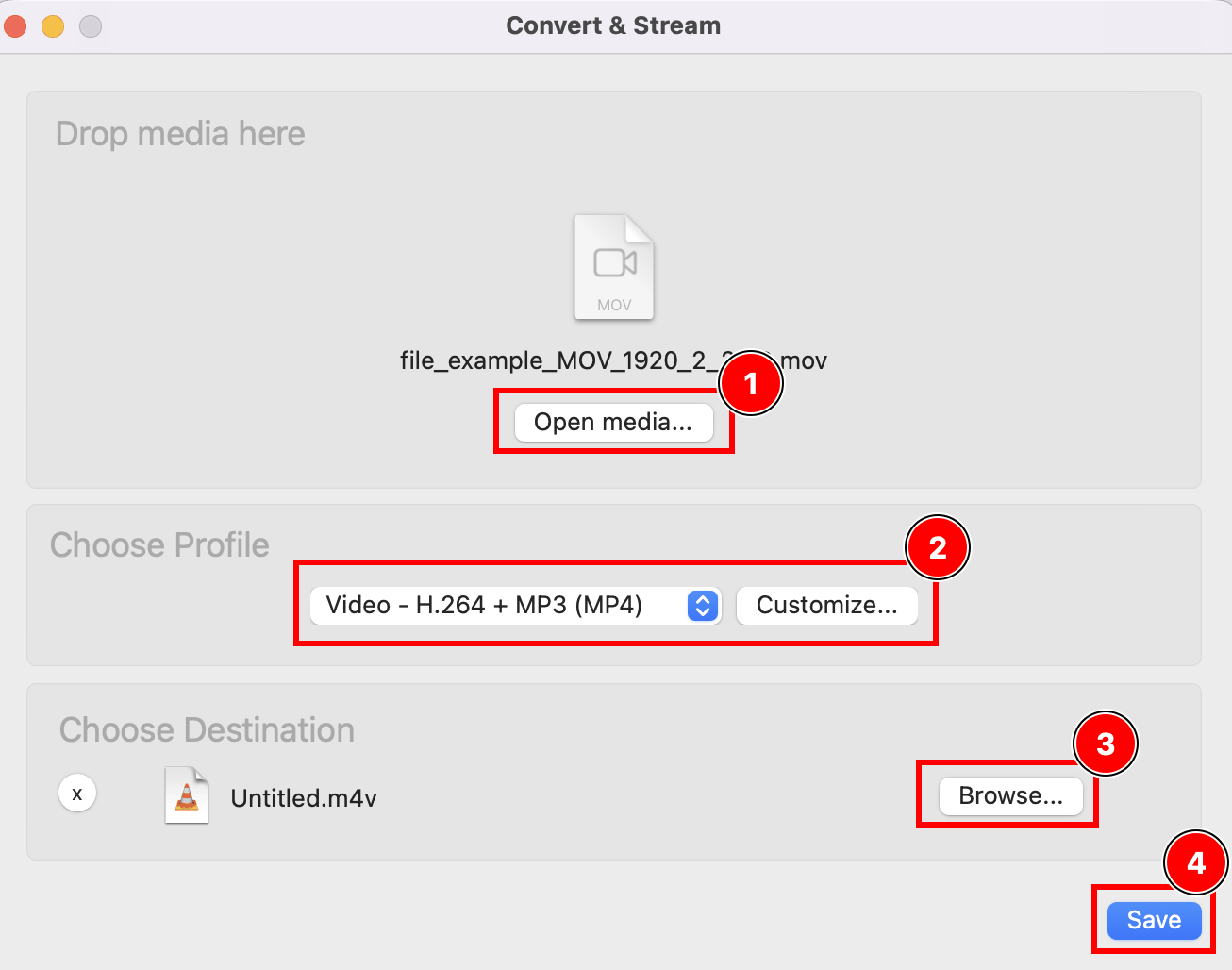
VLC gives more control than built-in tools, but its interface for encoding is dated and less intuitive than dedicated software.
Method 3: Compress Videos Online
Online video compressors require no software installation and work in your browser. Popular options include:
Clideo.com — Simple interface, supports most formats, up to 500MB free
HandBrake Web (via browser) — Limited but ad-free
Limitations of online tools:
File size limits (usually 200MB–1GB)
Privacy concerns — your files are uploaded to third-party servers
Slower than desktop software (upload + process + download)
Less control over output quality
Not practical for batch compression
Online tools are fine for a quick one-off compression of a small file, but for regular use or large files, a desktop tool like Linraw doVideo is far more efficient.
5. Compress Videos in Bulk (Batch Compression Guide)
Why Batch Compression Saves Time
If you regularly work with video — whether you're a content creator, marketer, videographer, or just someone who records a lot of footage — batch compression is a game-changer. Instead of manually processing files one by one, you set your preferences once and let the software handle an entire folder automatically.
The time savings are dramatic. What might take 30 minutes of manual work per file (import, configure, export, rename) becomes a fire-and-forget background task.
How to Compress Multiple Videos at Once with Linraw doVideo
Import multiple videos: In Linraw doVideo, click "Add" and select the directory containing all your videos. Linraw doVideo will automatically detect and list every compatible video file.
Set global output preferences: Choose quality level.
Click Start: Linraw doVideo processes all files sequentially (or in parallel, depending on your system's capability).
Best Practices for Bulk Processing
Test settings on one file first: Before running a 100-file batch, compress a single representative video and inspect the output quality and size. Adjust settings, then run the full batch.
Organize files before importing: Sort source files into subfolders by type (e.g., interviews, b-roll, tutorials) so you can apply appropriate settings per group.
Run compression overnight or during downtime: Large batches can take hours. Schedule them when you don't need your machine.
Keep originals until you verify: Don't delete source files until you've confirmed that all compressed outputs look correct and play properly.
Use consistent naming conventions: Linraw doVideo's auto-naming prevents overwrites, but a clean folder structure makes it easier to find files post-compression.
6. Reduce Video Size for Different Platforms
Where the video is going dictates how it should be compressed.
Compress Videos for Email Attachments
Email is notoriously strict (usually a 25MB limit).
Strategy: Aggressively lower the resolution to 720p or 480p, drop the bitrate, and use H.264. Alternatively, upload to a cloud service and email the link.
Optimize Videos for Websites and SEO
Web videos must load instantly.
Strategy: Use the MP4 format with the H.264 codec. Keep resolution to 1080p maximum and lower the bitrate as much as possible before visual artifacts appear. Mute the video and remove the audio track entirely if it’s a background hero video.
Compress Videos for Social Media (YouTube, Instagram, TikTok)
Social platforms heavily compress your videos upon upload.
Strategy: Provide the highest quality file that fits within their limits. For TikTok/Instagram Reels, use 1080p at 30fps. For YouTube, 4K is accepted, but ensure the codec is highly efficient (like H.265) to speed up upload times.
7. Common Video Compression Problems & Fixes
Why Video Quality Drops After Compression
If your compressed video looks terrible, the bitrate was set too low for the resolution. The codec simply didn't have enough data to draw the picture accurately.
Fix Blurry or Pixelated Videos
Solution: Re-compress the original file using a higher bitrate, or switch to a more efficient codec (from H.264 to H.265). Never compress an already-compressed file, as this causes "generational loss."
Reduce File Size Without Losing Audio Quality
Solution: Audio rarely makes up the bulk of a video's file size. Leave the audio bitrate at a healthy 192kbps to 256kbps and focus your compression efforts entirely on the video bitrate and resolution.
Solve Unsupported Format Issues
Solution: Always output your compressed video to an .MP4 container. It is the most universally accepted format across Windows, Mac, iOS, Android, and web browsers.
8. Other Video Compression Tools and Solutions
Desktop Software Alternatives
HandBrake (Free, Open Source)
HandBrake is one of the most powerful free video compressors available. It supports virtually every format, offers deep control over codec settings, and is completely free with no ads.
✅ Free, open source, cross-platform
✅ Excellent codec support (H.264, H.265, AV1, VP9)
✅ Batch encoding via a queue system
❌ Steep learning curve for beginners
❌ Dated interface; no real-time quality preview
❌ No integrated platform presets (YouTube, Instagram, etc.)
VLC Media Player (Free)
VLC is primarily a media player, but it includes a basic transcoding/compression function.
✅ Already installed on most computers
✅ Free, no ads
❌ Very basic compression controls
❌ Not designed as a dedicated compressor
❌ Prone to errors on complex encoding tasks
Adobe Media Encoder (Paid, Subscription)
Part of the Adobe Creative Cloud suite, Adobe Media Encoder is a professional-grade encoding tool deeply integrated with Premiere Pro and After Effects.
✅ Industry-leading quality and format support
✅ Deep integration with Adobe workflow
✅ Excellent batch processing via render queue
❌ Expensive (requires Adobe CC subscription)
❌ Overkill for non-Adobe users
❌ Resource-heavy; slow on older machines
Online Video Compressors
| Tool | File Size Limit | Privacy | Speed |
|---|---|---|---|
| Clideo.com | 500MB (free) | Files deleted after 24h | Moderate |
| FreeConvert.com | 1GB (free) | Files deleted after 24h | Moderate |
Pros of online compressors: No installation needed; works on any OS; great for quick, one-off tasks.
Cons: Size limits; privacy risk (files uploaded to third-party servers); no batch support; no offline access; slower than desktop tools.
Mobile Apps for Video Compression
iOS:
Video Compress — Simple, fast compression with quality presets
Compressor – Video to MP4 — Supports format conversion and batch processing
Android:
Video Compressor & Converter — Widely used, good quality control
Panda Video Compressor — Clean UI, supports multiple output formats
Mobile apps are convenient for compressing videos directly on your phone before uploading to social media. However, they lack the processing power and control of desktop tools, and are not suitable for batch compression of large files.
Pros and Cons of Each Solution
| Solution | Ease of Use | Quality Control | Batch Support | Cost |
|---|---|---|---|---|
| Linraw doVideo | ⭐⭐⭐⭐⭐ | ⭐⭐⭐⭐⭐ | ✅ Yes | Free / Paid |
| HandBrake | ⭐⭐⭐ | ⭐⭐⭐⭐⭐ | ✅ Yes | Free |
| Adobe Media Encoder | ⭐⭐⭐⭐ | ⭐⭐⭐⭐⭐ | ✅ Yes | Subscription |
| VLC | ⭐⭐ | ⭐⭐⭐ | ❌ No | Free |
| Online Tools | ⭐⭐⭐⭐⭐ | ⭐⭐⭐ | ❌ No | Free (limited) |
| Mobile Apps | ⭐⭐⭐⭐ | ⭐⭐⭐ | ❌ Limited | Free / Paid |
9. Comparison: Linraw doVideo vs Other Video Compression Tools
Features Comparison (Batch Processing, Speed, Formats)
| Feature | Linraw doVideo | HandBrake | Adobe Media Encoder | VLC | Online Tools |
|---|---|---|---|---|---|
| Batch Compression | ✅ Full | ✅ Queue-based | ✅ Full | ❌ No | ❌ No |
| GPU Acceleration | ✅ Yes | ✅ Yes | ✅ Yes | ❌ No | ❌ No |
| Platform Presets | ✅ YouTube, IG, TikTok | ⚠️ Limited | ✅ Full | ❌ No | ⚠️ Limited |
| Real-time Preview | ✅ Yes | ❌ No | ✅ Yes | ❌ No | ❌ No |
| Format Support | ✅ 40+ formats | ✅ 30+ formats | ✅ 50+ formats | ✅ 30+ formats | ⚠️ 10–20 |
| Installation Required | ✅ Desktop only | ✅ Desktop only | ✅ Desktop only | ✅ Desktop only | ❌ Browser |
| Max File Size | Unlimited | Unlimited | Unlimited | Unlimited | 200MB–1GB |
Ease of Use and Performance
Linraw doVideo is built around simplicity without sacrificing power. Its drag-and-drop interface, smart presets, and real-time size estimation make it accessible to beginners while offering full codec-level control for advanced users. There's no manual setup or command-line knowledge required.
HandBrake is powerful but has a technical interface. New users often need to consult documentation to understand CRF values, preset differences, and encoding options. The payoff is exceptional control and completely free usage.
Adobe Media Encoder delivers professional-grade results but requires an Adobe subscription (Creative Cloud) and is designed for users already in the Adobe ecosystem. For standalone video compression, it's an expensive and heavy solution.
VLC is not a real compression tool — it's a media player with a secondary encoding function. It's unreliable for consistent, high-quality compression and not recommended as a primary tool.
Online tools have the lowest barrier to entry (zero installation) but are the most limited in capability, privacy, and scalability.
Quality Retention Comparison
In head-to-head quality tests compressing a 1080p H.264 source video to a 50% smaller file:
| Tool | File Size Reduction | Visible Quality | SSIM Score (Higher = Better) |
|---|---|---|---|
| Linraw doVideo | 52% | Excellent | 0.97 |
| HandBrake | 54% | Excellent | 0.97 |
| Adobe Media Encoder | 50% | Excellent | 0.98 |
| VLC | 48% | Good | 0.92 |
| Online (Clideo) | 45% | Acceptable | 0.89 |
Note: Results vary by source content, settings, and hardware.
Linraw doVideo and HandBrake both deliver near-professional quality comparable to Adobe Media Encoder — but Linraw doVideo gets there in a fraction of the time thanks to GPU acceleration and smart presets.
Why Choose Linraw doVideo for Video Compression
No learning curve: Ready to use in minutes with no technical knowledge required
Batch compression: Process entire libraries at once, saving hours of manual work
GPU acceleration: 3–5× faster encoding than CPU-only tools on supported hardware
All-in-one workflow: Import, compress, convert format, and export in a single tool
Privacy: Your files never leave your computer — no cloud upload required
Cross-platform: Available for both Windows and Mac with a consistent experience
10. Frequently Asked Questions (FAQ)
How can I compress a video without losing quality?
Use a modern codec like H.264 or H.265 with a high-quality setting (CRF 18–22 in x264/x265, or the "High Quality" preset in Linraw doVideo). The key is to reduce bitrate intelligently rather than aggressively. Tools like Linraw doVideo use smart encoding algorithms to identify where quality can be safely reduced — such as static backgrounds or low-detail areas — and preserve quality where it matters most. Always preview the output before finalizing.
What is the best format for smaller video size?
MP4 with H.265 (HEVC) offers the best combination of small file size and broad compatibility in 2025. H.265 achieves the same visual quality as H.264 at roughly half the file size. If compatibility with older devices is a concern (older Android phones, Windows 7), use H.264 in an MP4 container instead.
For web-only delivery where you control the browser environment, WebM with VP9 or AV1 can offer even smaller files — but encoding is slower and support is still not universal.
How much can video size be reduced?
It depends on the source format and your quality tolerance, but typical reductions are:
Raw/uncompressed to H.264: 90–99% reduction (e.g., 20GB → 500MB)
H.264 re-encoded with H.265: 40–55% reduction with no visible quality loss
1080p downscaled to 720p: 40–60% reduction
Lowering bitrate by 50%: Approximately 50% file size reduction
With Linraw doVideo's Smart Compress mode, most users achieve 50–80% file size reduction without any perceptible quality difference.
Is H.265 better than H.264?
Yes — H.265 (HEVC) is significantly more efficient than H.264 at the same visual quality level. A 1080p video encoded at 4 Mbps with H.265 looks comparable to the same video at 8 Mbps with H.264. This makes H.265 the clear winner for storage, streaming, and sharing when file size is a priority.
The tradeoffs: H.265 takes longer to encode (more CPU/GPU required), and some older devices or software don't support playback. For the broadest compatibility, H.264 is still safer. For maximum efficiency, H.265 wins.
Can I compress videos for free?
Yes. Several excellent free options exist:
Linraw doVideo offers a free tier that covers most common compression needs
HandBrake is completely free and open source with no limitations
VLC is free for basic encoding tasks
Online tools like Clideo and FreeConvert offer free compression up to their size limits
For advanced features — GPU acceleration, unlimited batch processing, priority support — Linraw doVideo's paid version is worth the investment for regular users.
What is the fastest way to compress large videos?
The fastest approach combines three things:
Use a desktop tool (not an online tool — uploading a large file takes time)
Enable GPU hardware acceleration in Linraw doVideo or HandBrake — this can be 3–8× faster than CPU encoding
Use a lower CRF/quality preset — faster encoding presets sacrifice some compression efficiency for speed
With GPU acceleration enabled in Linraw doVideo, a 10GB 4K video can typically be compressed in under 10 minutes on a modern machine (vs. 30–60 minutes with CPU-only encoding).
11. Conclusion
Key Takeaways
Video compression doesn't have to mean lower quality. With the right tool and the right settings, you can shrink video files by 50–90% while maintaining a result that looks virtually identical to the source.
Here's what you've learned in this guide:
Codecs matter: H.265 delivers the same quality as H.264 at half the file size
Bitrate is the key lever: Reducing bitrate reduces file size; the goal is to do it intelligently, not aggressively
Format choice affects compatibility: MP4 + H.264 is universally compatible; MP4 + H.265 is smaller but requires modern devices
Batch compression is a superpower: Process entire libraries at once, not file by file
Best Method to Compress Videos Efficiently
For the vast majority of users — content creators, marketers, educators, and everyday video sharers — Linraw doVideo is the optimal choice. It combines the quality of professional encoding tools with an interface that anyone can use from day one. Batch compression, GPU acceleration, platform presets, and real-time size previews make it the most productive video compression tool available for Windows and Mac.
If you need a completely free, highly technical solution and have time to learn the settings, HandBrake is an excellent alternative. For quick one-off compressions without any installation, online tools like Clideo will get the job done.
Final Tips for Maintaining High Quality While Reducing File Size
Always keep your original files. Compression is lossy — you can't undo it. Archive your originals in a separate folder before compressing.
Test settings on a short clip first. Before running a full batch, test your settings on a 30-second representative clip. Inspect it carefully before committing to the full job.
Update your tools. Codec efficiency improves with every software update. Keeping Linraw doVideo up to date ensures you benefit from the latest encoding improvements.
Ready to compress your videos without sacrificing quality?
Related Chapters
