How to Batch Convert Hundreds of WebP Images to JPG in Seconds (Mac & Windows)
1. Introduction: Why You May Need to Convert WebP to JPG
In the modern web landscape, WebP has become a dominant force. Developed by Google, it offers superior compression and smaller file sizes compared to older formats. However, despite its efficiency, you have likely encountered the frustration of saving an image from the web, only to find your computer or editing software refuses to open it because it's a .webp file.
What Is WebP?
WebP is a modern image format developed by Google. It provides smaller file sizes than JPG or PNG while maintaining good visual quality, making it popular for websites and web apps.
However, WebP is still not universally supported across all platforms, apps, and workflows—especially outside the browser environment.
Why JPG Is Still Widely Used
JPG (JPEG) remains one of the most widely supported image formats in the world. It works seamlessly with:
Desktop image viewers
Design software
CMS platforms
E-commerce systems
Social media and email clients
For maximum compatibility and ease of use, converting WebP images to JPG is often the most practical choice.
2. Why Batch Convert WebP Images to JPG
If you only have one image, a simple "Save As" might suffice. But what if you have downloaded a folder containing 50, 100, or even 500 product images in WebP format?
Single vs Batch Conversion
Converting one image at a time is manageable—but converting dozens or hundreds of WebP files individually quickly becomes inefficient and error-prone.
Batch conversion allows you to:
Convert entire folders at once
Apply consistent output settings
Save hours of repetitive work
Common Use Cases
Batch WebP to JPG conversion is especially useful for:
Designers exporting assets for clients
Web developers preparing images for CMS uploads
E-commerce sellers converting product images
Photographers organizing large image libraries
Marketing teams preparing images for campaigns
3. WebP vs JPG: Compatibility, Size, and Quality
Understanding the technical differences helps you decide when a conversion is necessary.
Format Differences Explained
| Feature | WebP | JPG |
|---|---|---|
| Compression | Advanced (lossy & lossless) | Lossy |
| Browser Support | Modern browsers | Universal |
| App Compatibility | Limited | Excellent |
| File Size | Smaller | Slightly larger |
When JPG Is the Better Choice
JPG is the better option when you need:
Maximum software compatibility
Easy sharing across platforms
Reliable printing and editing support
Uploads to systems that don’t accept WebP
4. Best Way to Batch Convert WebP to JPG on Mac & Windows
While there are many ways to convert files, the method you choose affects speed, privacy, and workflow efficiency.
Why Use a Desktop Converter
Desktop converters offer clear advantages over online tools:
Faster batch processing
No upload limits
Full privacy (files never leave your computer)
Works offline
Better control over quality and metadata
Why Linraw doImage Is Ideal for Bulk Conversion
Linraw doImage is a cross-platform desktop solution designed for high-volume image processing. It supports both Windows and macOS and focuses on speed, simplicity, and privacy.
Key advantages:
True batch conversion for hundreds or thousands of images
Native performance on Mac and Windows
No file size or quantity limits
Multiple image tools in one app
5. Step-by-Step: Batch Convert Hundreds of WebP Images to JPG with Linraw doImage
Follow this simple guide to convert your entire library instantly.
Step 1: Download and Install Linraw doImage
Download the latest version of Linraw doImage for your OS (Windows or macOS). The installation is lightweight and takes less than a minute.

Step 2: Add Multiple WebP Files or Folders
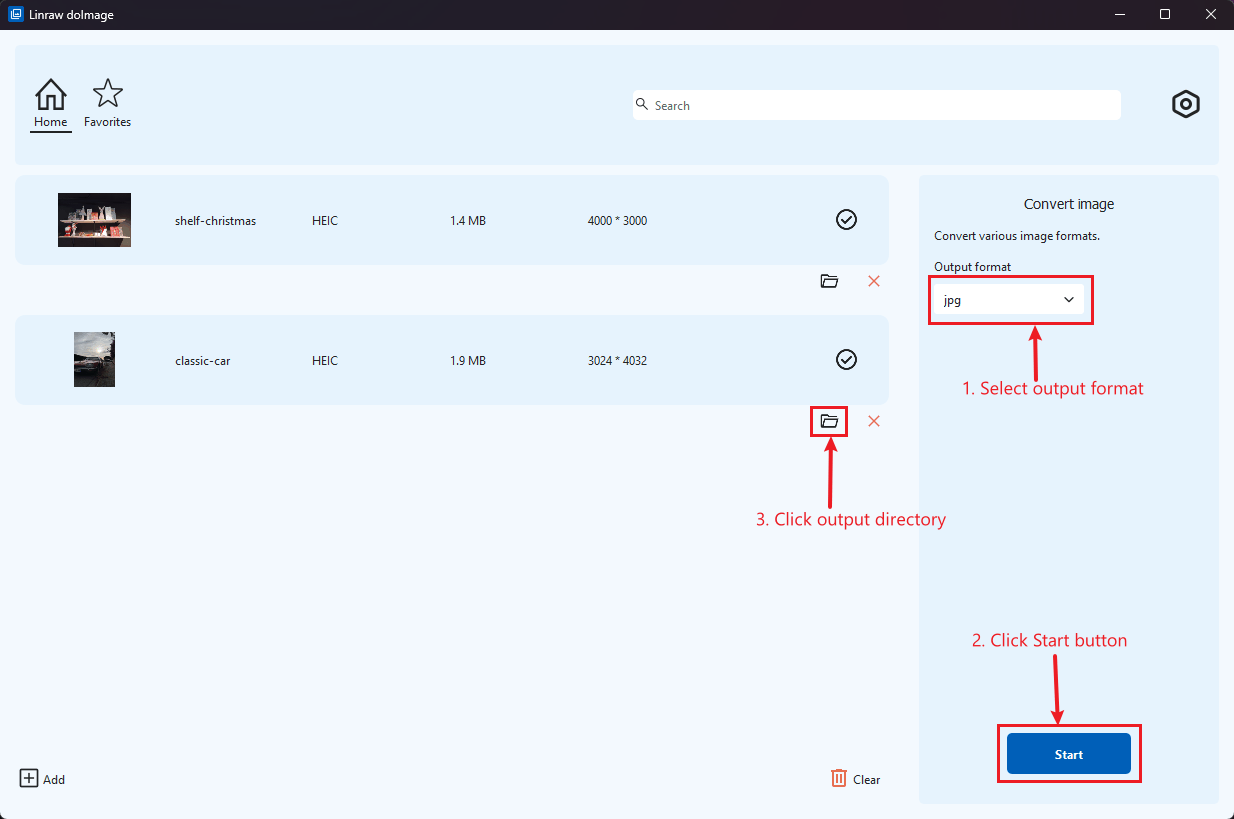
Launch Linraw doImage and navigate to the "Image Converter" tool. You can simply drag and drop entire folders or select hundreds of individual WebP files at once. Linraw doImage instantly lists them in the queue.
Step 3: Choose JPG Output Settings
In the output format dropdown, select JPG.
Step 4: Start Batch Conversion in Seconds
Click the "Start" button. Watch as the progress bars fly by—converting hundreds of images typically takes just a few seconds thanks to Linraw doImage's optimized engine.
6. Advanced Batch Conversion Options in Linraw doImage
Linraw doImage isn't just a blunt tool; it offers precision controls for professionals.
Preserving Image Quality: Keep it at 100% for maximum fidelity or lower it to save disk space.
Preserving EXIF Metadata & Color Profiles: Vital for photographers, Linraw doImage keeps your camera data (ISO, shutter speed, date taken) intact during the conversion from WebP to JPG.
Manage Output Folders Efficiently: Choose to save converted files in the source folder or a new dedicated directory to keep your workspace clean.
7. WebP to JPG on Mac vs Windows: What Are Your Options?
Built-in System Limitations
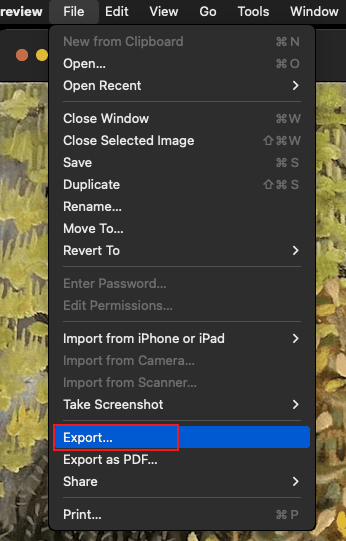
Mac (Preview): Can convert images, but selecting hundreds of files often causes the app to lag or crash. It also lacks advanced renaming and resizing options during conversion.
Windows (Paint/Photos): Generally requires opening files one at a time. It is not built for batch processing.
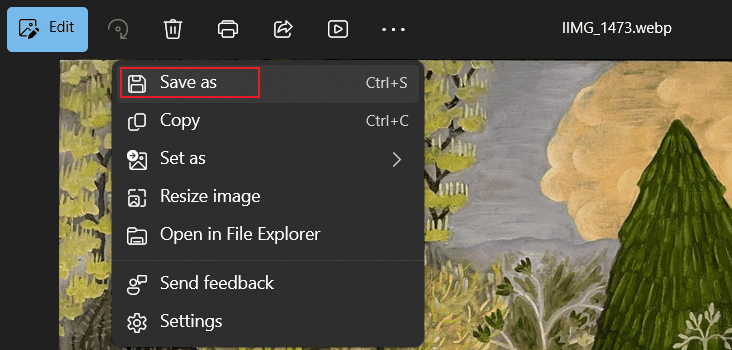
Neither system provides an efficient built-in solution for bulk conversion.
Why Cross-Platform Tools Matter
A cross-platform tool like Linraw doImage ensures:
Identical workflows on Mac and Windows
No learning curve between systems
Consistent results across teams
8. Other Ways to Convert WebP to JPG (And Their Limitations)
Online WebP to JPG Converters
Pros:
No installation required
Cons:
Upload limits
Slow for large batches
Privacy concerns
Internet dependency
Command-Line Tools (e.g., ImageMagick)
Pros:
Powerful and flexible
Cons:
Technical setup
Not beginner-friendly
Less convenient for daily tasks
Browser Extensions
Pros:
Quick for one-off images
Cons:
Poor batch support
Limited output control
Browser-dependent
9. More Than WebP to JPG: Explore Other Linraw doImage Image Tools
Linraw doImage is a comprehensive toolkit for your digital assets. Once you have converted your images, you can do even more:
Image Compression: Shrink your new JPGs to save space without visible quality loss.
Image Format Conversion: Convert HEIC, PNG, BMP, and TIFF formats just as easily.
Image to GIF / PDF: Combine your images into an animated GIF or a professional PDF document.
PDF to Image: Extract high-quality images from PDF reports or brochures.
All tools are designed for fast, offline, bulk processing.
10. Frequently Asked Questions About WebP to JPG Conversion
Does Converting WebP to JPG Reduce Quality?
JPG is a lossy format, but with proper quality settings, visual differences are minimal for most use cases.
Can I Convert WebP to JPG Offline?
Yes. Linraw doImage works entirely offline—no uploads, no internet required.
How Many Images Can I Convert at Once?
There’s no fixed limit. You can convert hundreds or even thousands of WebP images in one batch.
Does Linraw doImage Work on Apple Silicon (M1/M2/M3)?
Yes. Linraw doImage is fully compatible with Apple Silicon as well as Intel-based Macs and Windows PCs.
11. Conclusion: Fast & Offline WebP to JPG Batch Conversion Made Simple
If you need to batch convert hundreds of WebP images to JPG quickly, reliably, and offline, a desktop solution is the smartest choice.
With Linraw doImage, you get:
Cross-platform support (Mac & Windows)
True bulk conversion
Full control over quality and metadata
A complete image processing toolkit in one app
Batch WebP to JPG conversion doesn’t have to be complicated—Linraw doImage makes it fast, simple, and efficient.
